1. Choose Label Edges, Orientation & Margin Offset
Open Label Options (Ctrl+L) or use the inline label bar to pick Top, Bottom, Left, or Right edges and set exact millimeter distance from the artwork.
NEW FEATURE · SMART MARGIN BAND & PIXEL-SHARP MINI QR
When dozens of similar white or navy vinyl panels come off the roll, mixing up which piece belongs to which store window or vehicle door costs hours and wasted media. IKSIR Label Options prints a clean margin info strip paired with a crisp Nearest-Neighbor Mini QR code so any operator or installer can verify a piece in one scan.
WORKSHOP TIME & ERROR COMPARISON
STEP-BY-STEP WORKSPACE GUIDE
Open Label Options (Ctrl+L) or use the inline label bar to pick Top, Bottom, Left, or Right edges and set exact millimeter distance from the artwork.
Select Filename, Job Code, Page Code, Panel Index, and Size fields, then check "QR Job Code" to append a scannable Mini QR alongside the text.
Enable protective outline strokes so text stays legible over dark or patterned fold allowances, and save presets (e.g., "Trade/Blind Ship", "Vehicle Panels", "Pole Banners").
Verify exact label and Mini QR placement on the live canvas before exporting—every file and split panel receives its own unique label automatically.
OPERATOR REFERENCE TABLE & TECHNICAL SPECS
Keep labels invisible on the finished install while maximizing shop-floor traceability:
| Production Job Type | Recommended Edge & Allowance Zone | Mini QR Operational Benefit |
|---|---|---|
| Multi-Panel Facade & Vehicle Wraps | Top trim margin or underlap seam edge | Installers scan to confirm Panel 1/6–6/6 order and vehicle/window ID |
| Street Banners & Pole Banners | Inner rear side of pole/sleeve fold allowance | Sewing crew matches Front (A) and Back (B) sleeves and street pole codes |
| Retail Chain Campaign Shipments | Bottom trim strip with Branch Code + Mini QR | Packing table sorts hundreds of prints into regional store boxes error-free |
| Stretched Canvas & SEG Lightbox | Rear staple margin or silicone keder sew allowance | Framing/sewing team verifies Top/Bottom orientation and exact frame size |
SAMPLE OUTPUTS & CALCULATORS
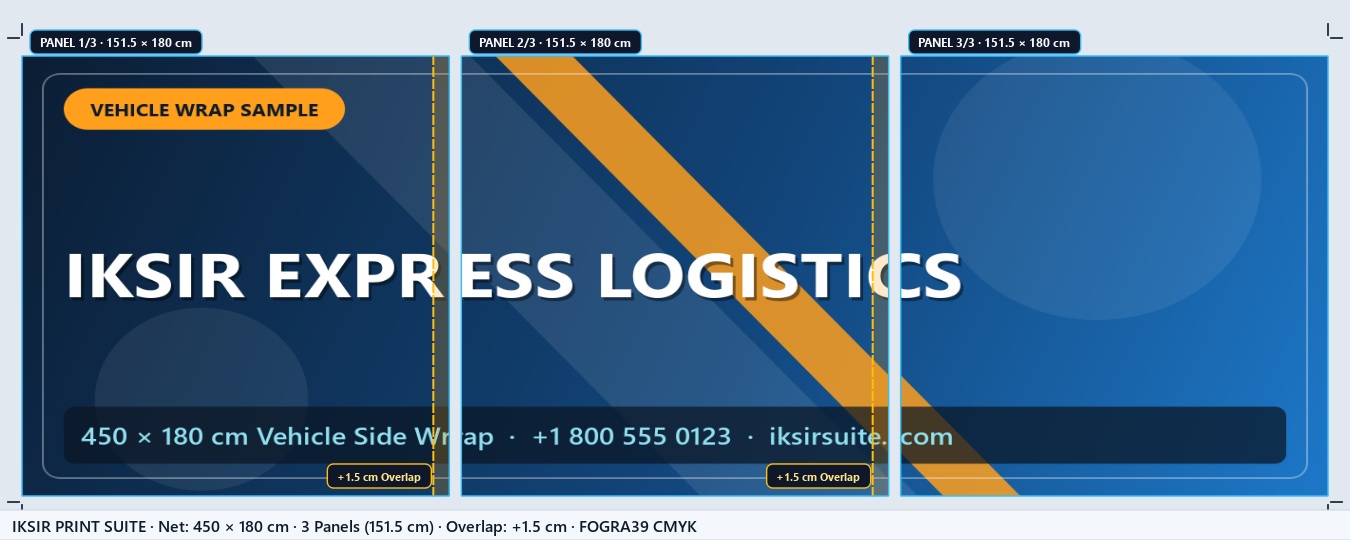
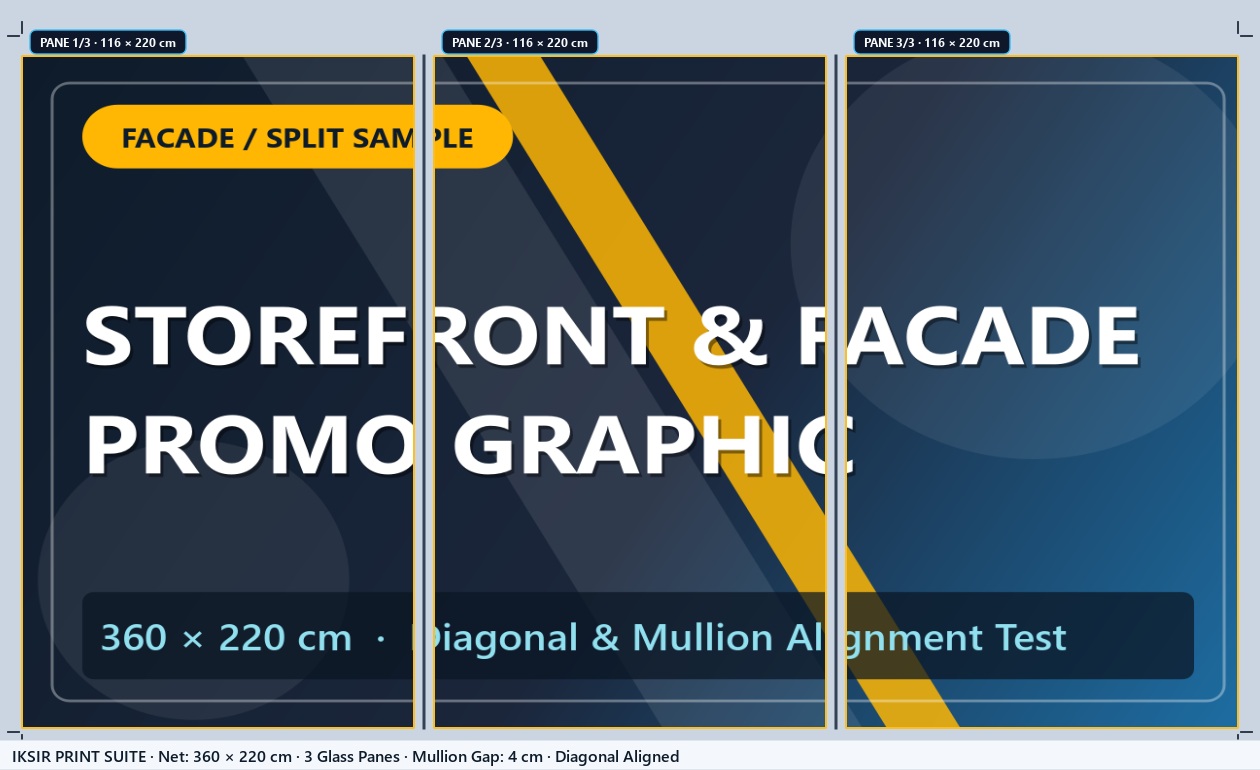
Download both the clean source artwork and IKSIR’s production output (with overlap seams, sleeve folds, grommets, and print labels) to verify physical dimensions in Onyx, Caldera, VersaWorks, PhotoPrint, or Maintop.
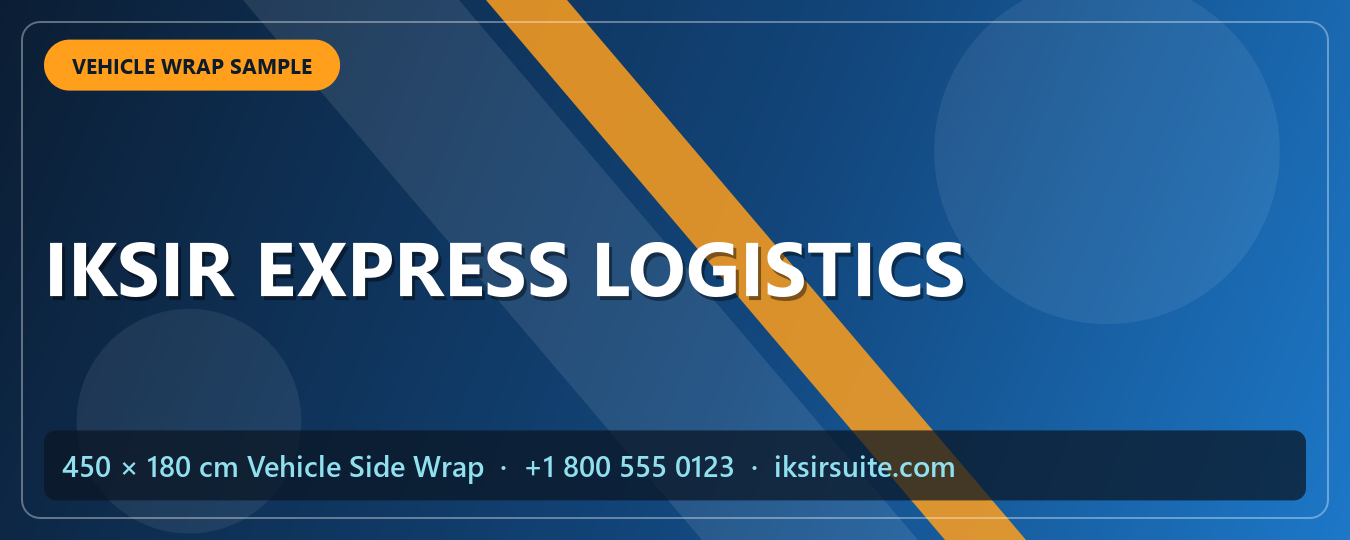
450 × 180 cm side-wrap artwork automatically tiled across 152 cm vinyl rolls with +1.5 cm overlap seams.
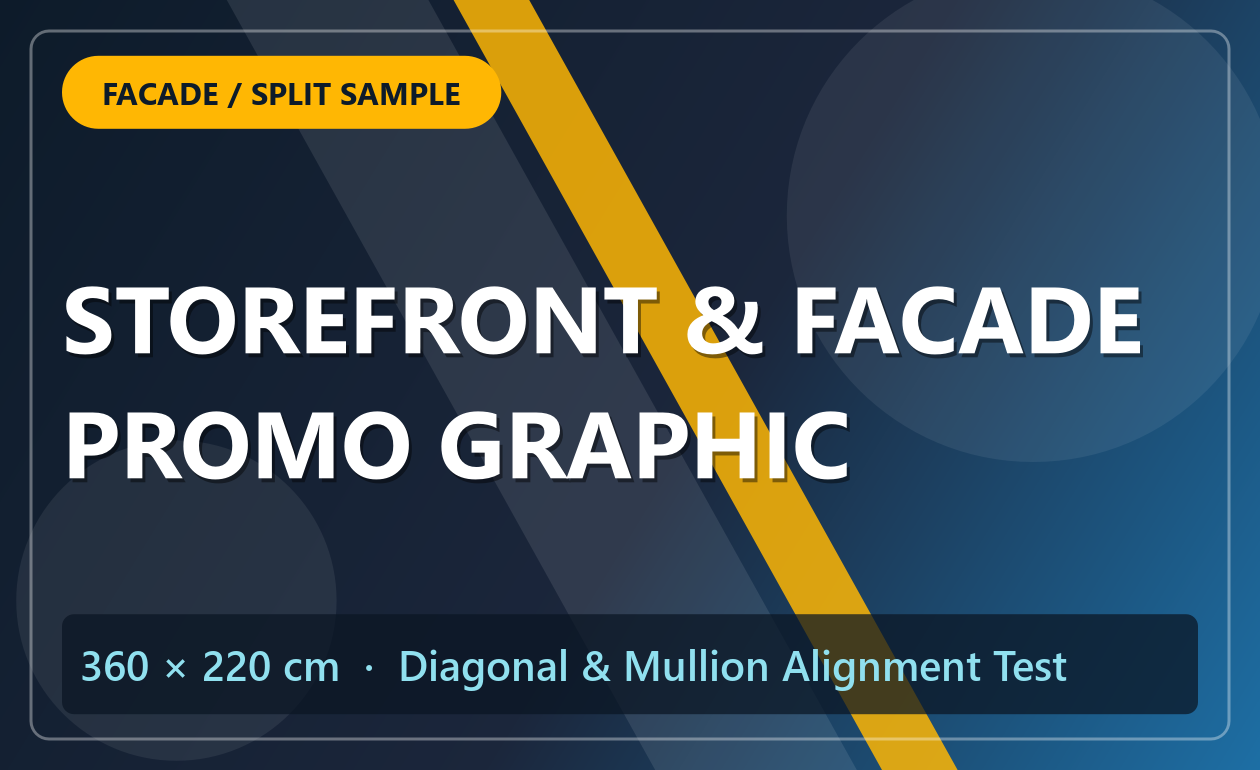
360 × 220 cm shopfront graphic split across 3 glass panes with 4 cm aluminum mullion gap compensation.
MODE-SPECIFIC FREQUENTLY ASKED QUESTIONS
No. Labels sit cleanly inside your designated margin/hem allowance or outer trim strip without cropping the live image.
The label measurement engine compares total text + QR width against the shortest selected edge and scales point size proportionally so nothing clips.
Yes. Any board, branch, or page code assigned via Select Pages · Add Code is encoded directly into both the printed label text and the Mini QR.
Yes. Save unlimited named presets inside Label Options and switch between them in one click.
COMPLEMENTARY WORKSPACES
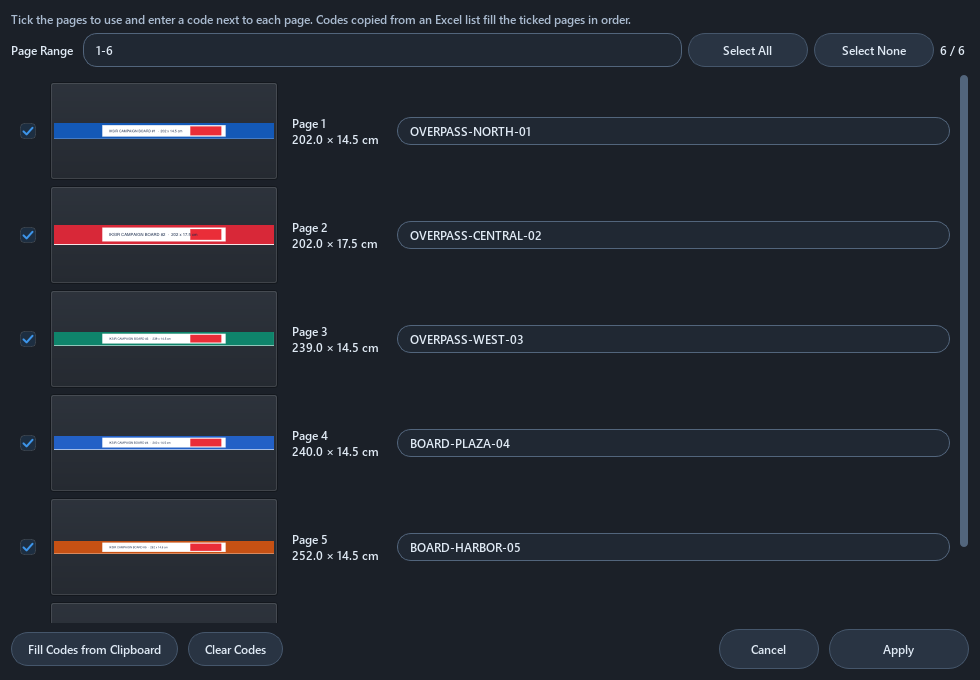
Filter specific page ranges from multi-size campaign PDFs, inspect high-res page previews with exact cm dimensions, and paste an entire column of board/branch codes straight from Excel.
Detailed Mode Guide & Specs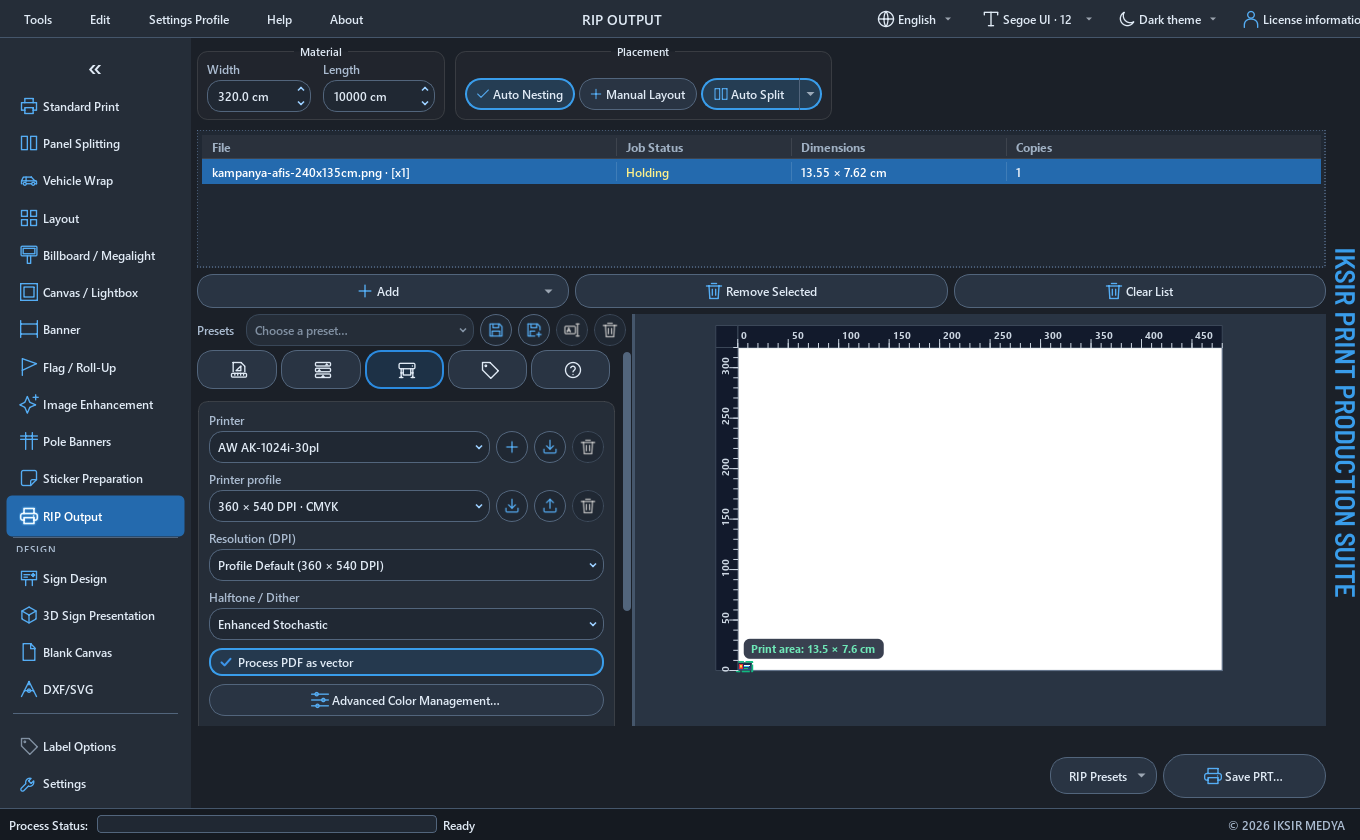
Generate machine-ready .prt files directly with 7 halftone/dither engines, CMYK + Lc/Lm + White + Varnish spot control, per-channel tone curves, live TAC ink inspection, and Eye-One calibration.
Detailed Mode Guide & Specs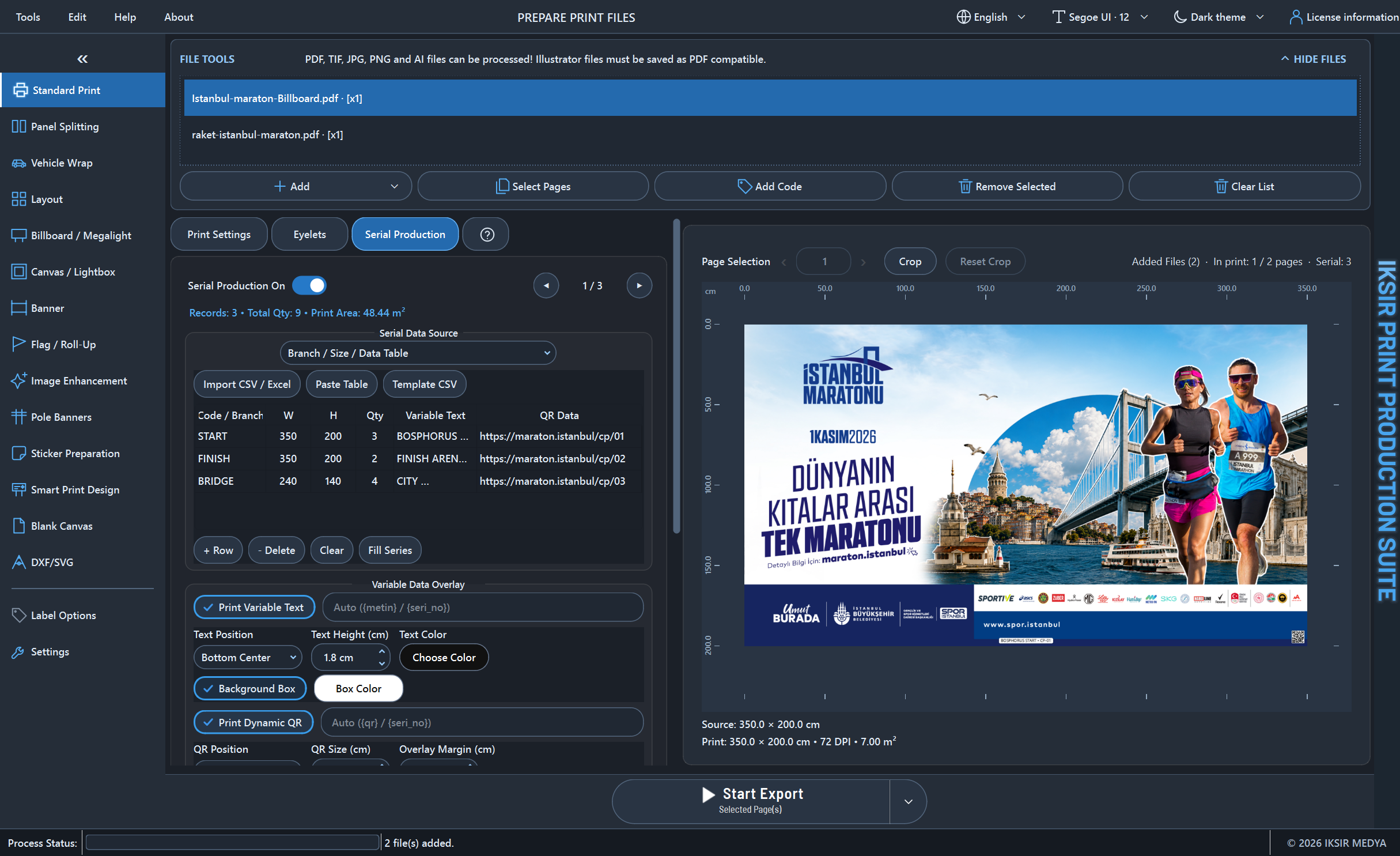
Import an Excel/CSV branch-size-quantity sheet or run a sequential counter to generate hundreds of custom-sized signs, variable prices/texts, and dynamic QR codes—then nest onto rolls in one click.
Detailed Mode Guide & SpecsNo need to hunt for test PDFs after installing; click "Try with Sample Artwork" inside any mode to load a real-scale job and inspect the output immediately.