1. Drop a Multi-Page PDF, AI, or TIFF File into the Queue
Click "Select Pages · Add Code" on the file toolbar; IKSIR reads every page’s clean TrimBox/CropBox dimensions automatically.
OVERPASS, CLP & RETAIL CAMPAIGNS · MULTI-PAGE PDF CODING
Municipal overpass campaigns, transit shelter (CLP) routes, and 50-store retail rollouts routinely arrive as a single multi-page PDF where every page has a different centimeter width—accompanied by an Excel sheet of board or store codes. Instead of splitting PDFs and renaming files by hand, handle selection, previewing, and bulk coding in one window.
WORKSHOP TIME & ERROR COMPARISON
STEP-BY-STEP WORKSPACE GUIDE
Click "Select Pages · Add Code" on the file toolbar; IKSIR reads every page’s clean TrimBox/CropBox dimensions automatically.
Type ranges like "1-9" or untick unneeded pages. Click any thumbnail to open Large Page Preview and verify fine copy before printing.
Copy your board, bridge, or store code column in Excel (Ctrl+C) and click "Fill Codes from Clipboard" to populate every selected page in order.
Every selected page processes at its own native dimensions with its assigned code printed on the margin label, encoded in the Mini QR, and appended to the output filename.
OPERATOR REFERENCE TABLE & TECHNICAL SPECS
Real campaign workflows streamlined by Select Pages · Add Code:
| Campaign Type | Incoming Agency File | IKSIR Workflow Advantage |
|---|---|---|
| Municipal Overpass & Bridge Banners | Single PDF with varying bridge lengths (202 cm, 239 cm, 252 cm, 303 cm) | Preserves each page’s true cm size and assigns bridge IDs from Excel in 1 click |
| Transit Shelter (CLP) & Billboard Routes | 30–100 page PDF + Excel route/board number sheet | Sequential clipboard code fill ensures field crews hang the right board at each stop |
| Retail Chain Window Rollouts | Multi-page PDF grouped by window tiers | Filter regional batches (e.g., 15-32) and label each print with store ID + Mini QR |
| Damaged Single-Board Reprint | Full campaign PDF when only 2 boards need replacement | Type "7, 19" in Page Range to output replacements in seconds without touching other pages |
SAMPLE OUTPUTS & CALCULATORS
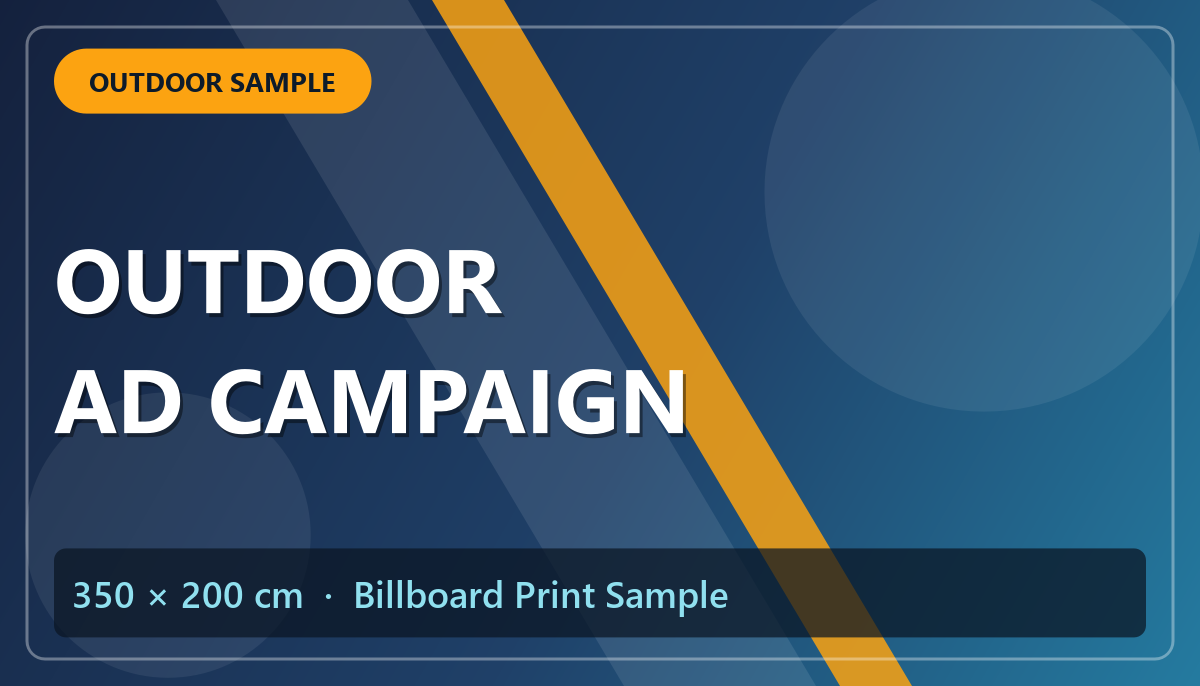
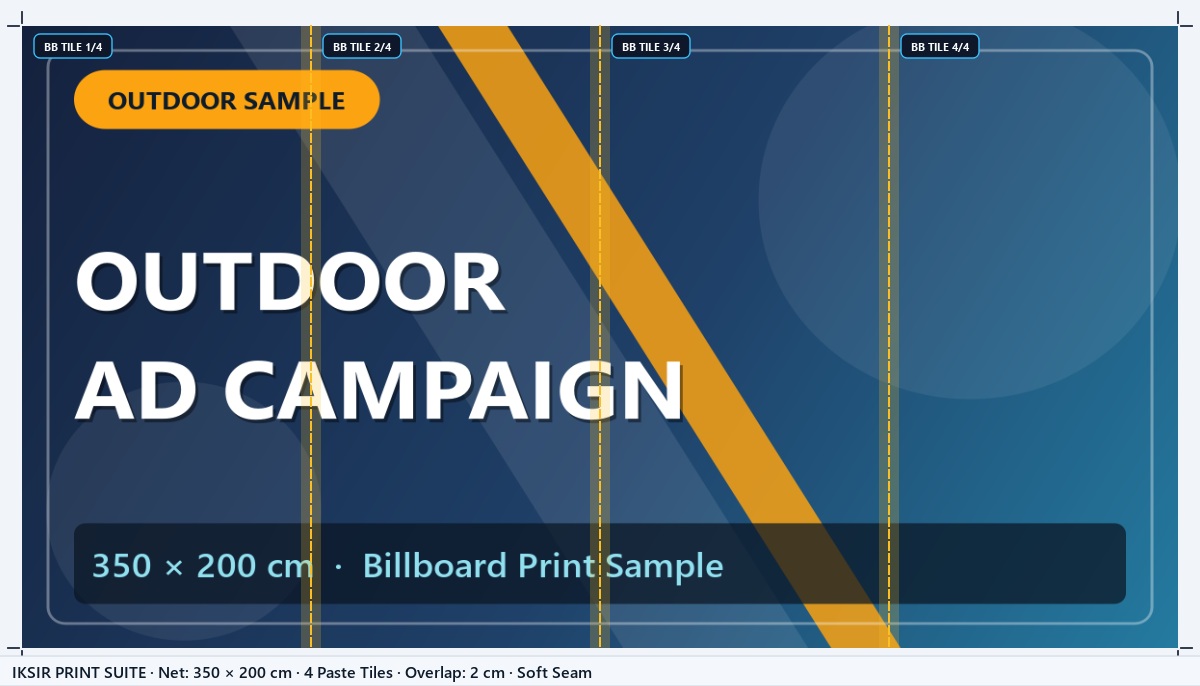
Download both the clean source artwork and IKSIR’s production output (with overlap seams, sleeve folds, grommets, and print labels) to verify physical dimensions in Onyx, Caldera, VersaWorks, PhotoPrint, or Maintop.
460 × 80 cm banner prepared with 7 cm mirrored left/right pole pockets and corner grommets.


350 × 200 cm billboard artwork split into 4 pasting sheets with 2 cm overlap allowance.
MODE-SPECIFIC FREQUENTLY ASKED QUESTIONS
Yes. In automatic/source size mode, Page 1 (202×14.5 cm) and Page 7 (303×14.5 cm) each export at their exact individual dimensions with matching size labels.
No. Simply highlight the cells in Excel or Google Sheets, press Ctrl+C, and click "Fill Codes from Clipboard."
Assigned codes appear on the printed margin label, inside the Mini QR code (when enabled), and in exported output filenames.
Yes. IKSIR reads PDF TrimBox/CropBox geometry so registration marks and color bars never inflate your net print dimensions.
COMPLEMENTARY WORKSPACES
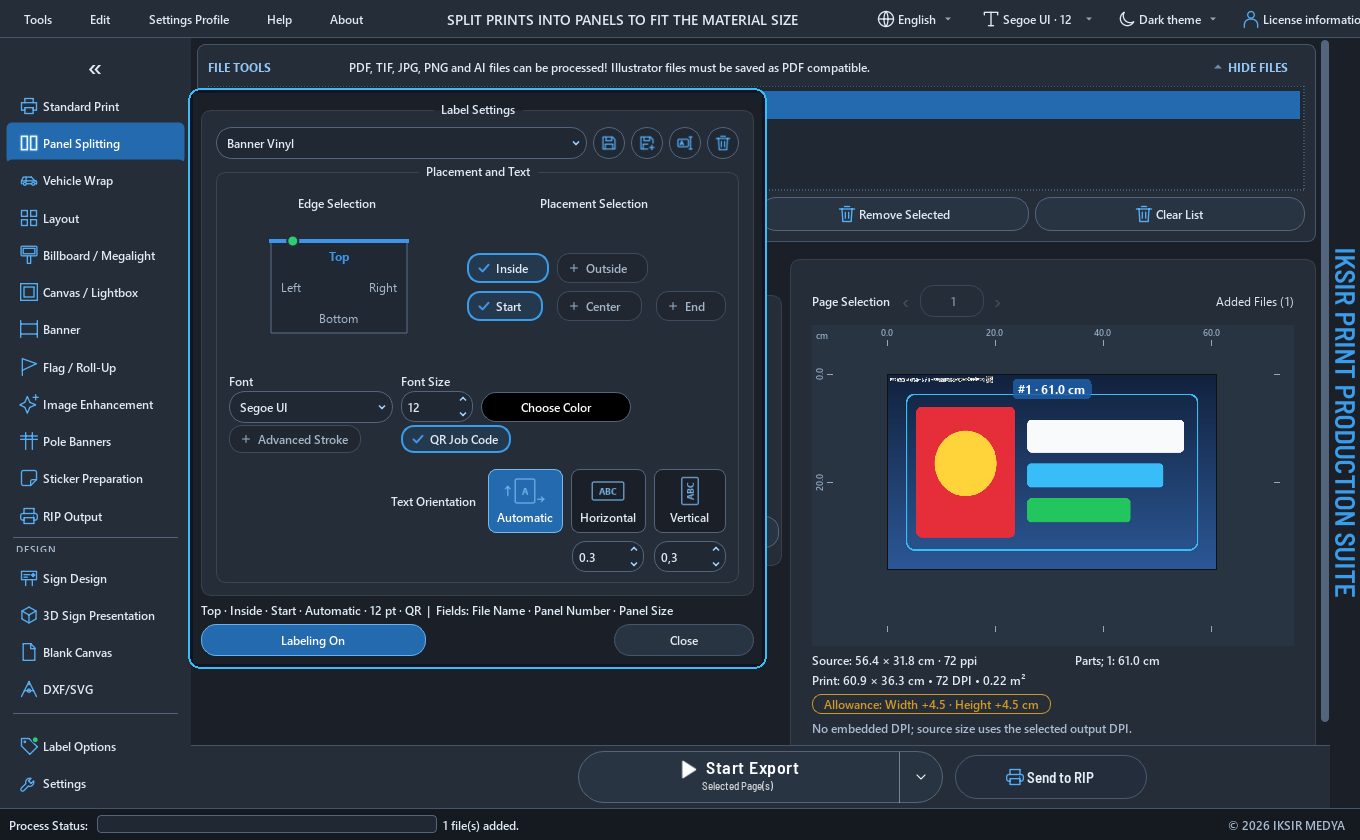
Print filename, job code, panel index (2/5), net/gross dimensions, and a crisp pixel-aligned Mini QR code on any margin edge so cutting and installation crews verify panels by phone scan.
Detailed Mode Guide & Specs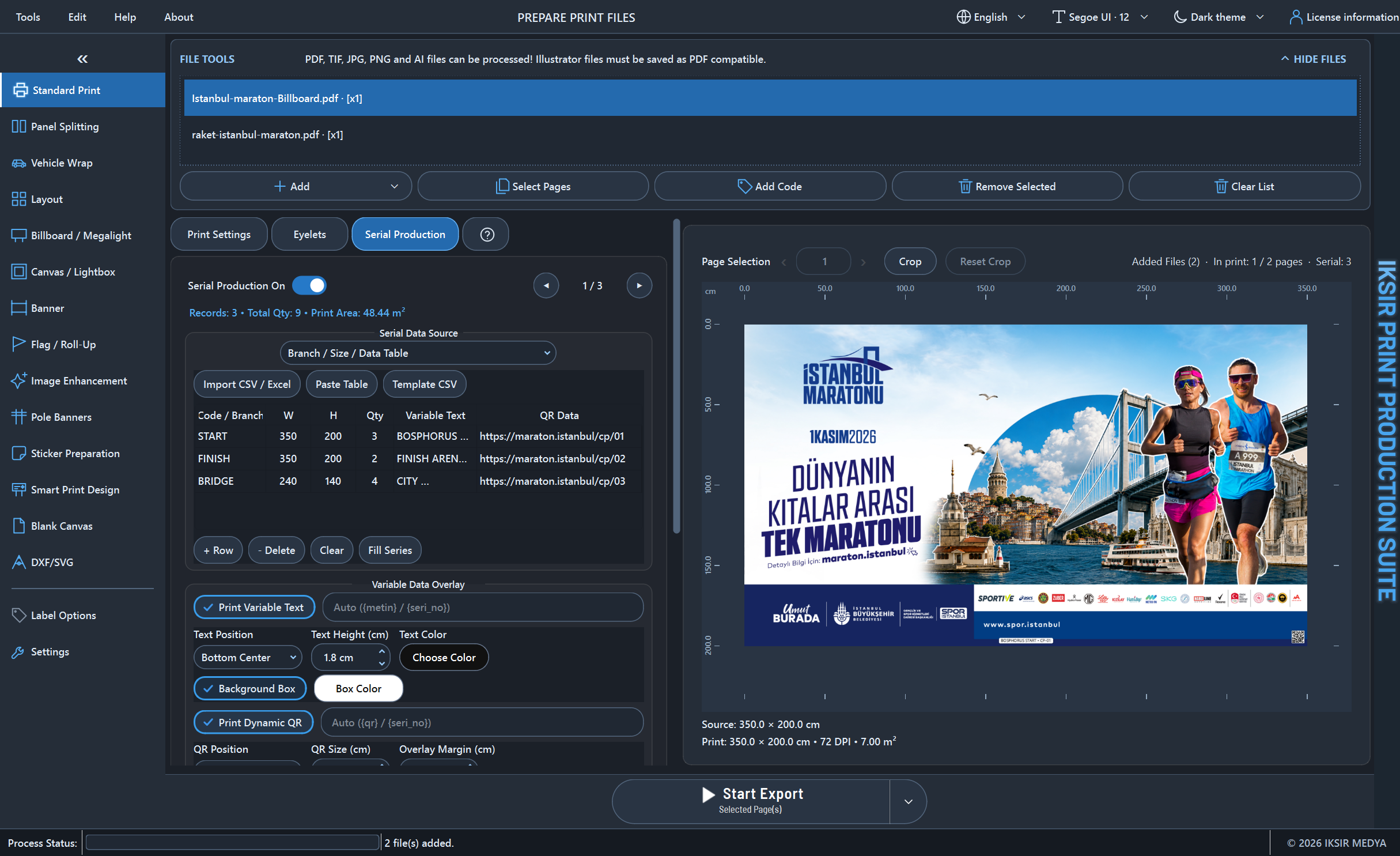
Import an Excel/CSV branch-size-quantity sheet or run a sequential counter to generate hundreds of custom-sized signs, variable prices/texts, and dynamic QR codes—then nest onto rolls in one click.
Detailed Mode Guide & Specs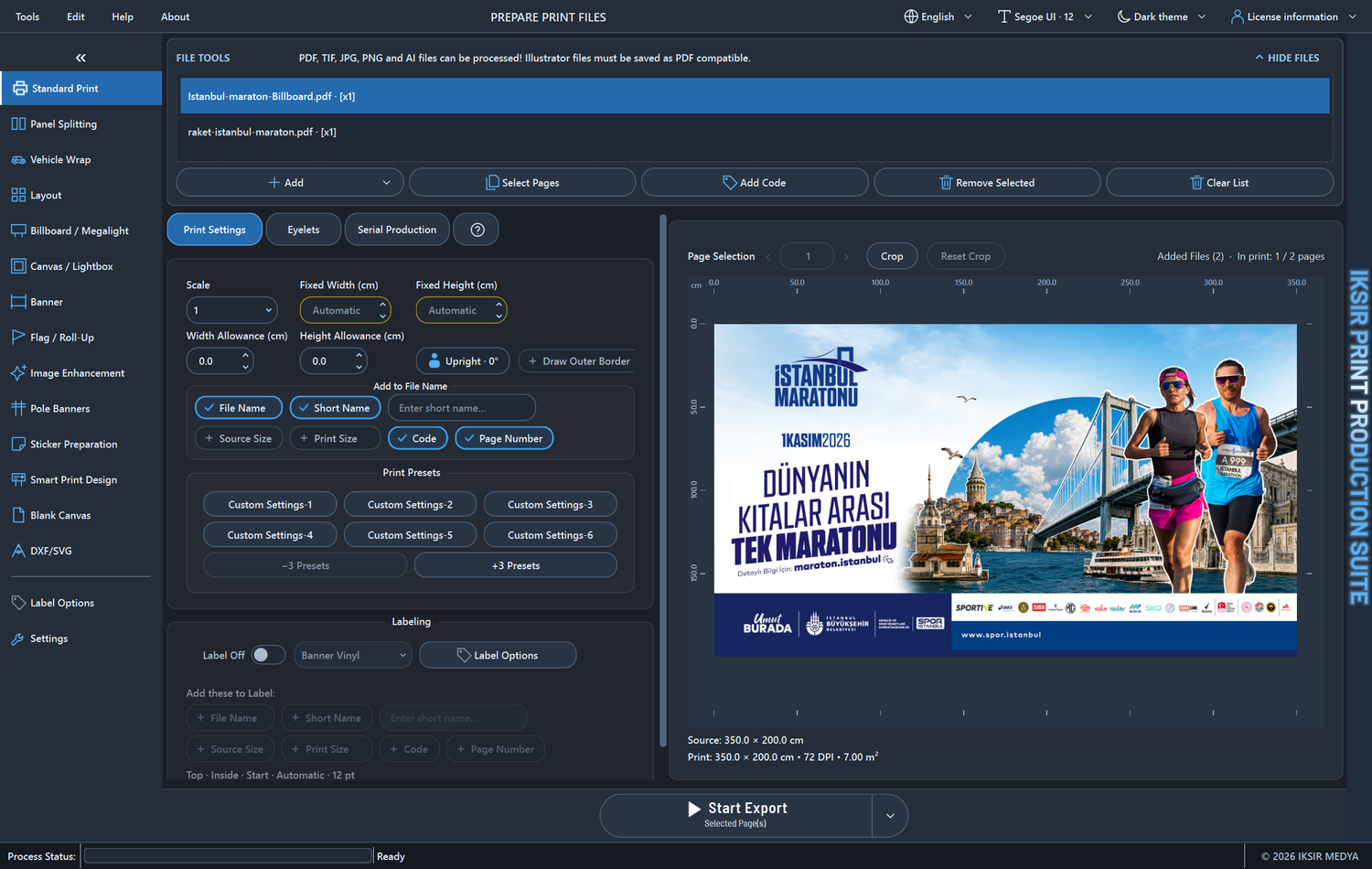
Prepare single or multi-page PDF, AI, TIFF, and raster jobs to exact dimensions, DPI, hem/fold margins, symmetrical grommet marks, and embedded CMYK ICC profiles in parallel.
Detailed Mode Guide & SpecsNo need to hunt for test PDFs after installing; click "Try with Sample Artwork" inside any mode to load a real-scale job and inspect the output immediately.