1. Create a Sized Canvas Tab or Pick a Sign/Banner Preset (Ctrl+N)
Start from Standard Sign (300×100 cm), Lightbox (200×80 cm), Roll-Up (85×200 cm), or Poster (50×70 cm), or enter custom width, height, DPI, and background transparency.
DESIGN FROM SCRATCH · PHOTOSHOP-STYLE LAYERED EDITOR
Whether you need to compose a banner from scratch while a client waits, knock out a logo background, clone out an outdated phone number on a photo, or combine PDF/SVG assets onto a custom canvas, press Ctrl+N to open a real-centimeter layered workspace wired straight into your print, cut, and 3D mockup pipelines.
WORKSHOP TIME & ERROR COMPARISON
STEP-BY-STEP WORKSPACE GUIDE
Start from Standard Sign (300×100 cm), Lightbox (200×80 cm), Roll-Up (85×200 cm), or Poster (50×70 cm), or enter custom width, height, DPI, and background transparency.
Use Add Image or drag-and-drop PNG, JPEG, TIFF, SVG, and PDF pages directly onto the canvas; scale, rotate, and stack layers non-destructively.
Remove backgrounds with Magic Wand, Object Selection, and Lasso; clean blemishes with Clone Stamp and Retouch (Heal); add Bézier paths, 12+ vector shapes, gradients/patterns, and multiline typography.
Save multi-layer .iksir project files for future revisions, preview on a building facade in 3D Sign Presentation, send vectors to DXF/SVG cutting, or push directly to print.
OPERATOR REFERENCE TABLE & TECHNICAL SPECS
Built-in editing tools engineered for high-resolution wide-format canvases:
| Tool Category | Included Tools & Shortcuts | Everyday Shop Use Case |
|---|---|---|
| Layers & Transform | + New Layer, Move Layer/Object, Free Transform (Ctrl+T), Duplicate (Ctrl+D), Effects | Independent logo/headline alignment with non-destructive strokes & shadows |
| Selection & Cutout | Magic Wand, Object Selection, Lasso, Polygon, Marquee, Replace Color | Knocking out white or photo backgrounds from client logos in seconds |
| Retouch & Brushes | Brush, Eraser, Clone Stamp, Retouch (Heal), Blur & Sharpen Brushes | Removing old dates/wires on facade or product photos and local sharpening |
| Vector, Fill & Type | Pen/Bézier, 12+ Shapes, Paint Bucket, Gradient, Pattern Fill, Rich Text & QR | Building complete shop signs, directional boards, promotional badges, and posters |
| Precision & Proofing | Rulers & Magnetic Guides (Ctrl+R), Measure Tool, Before/After, History | Snapping safe margins to exact millimeter marks before printing |
UV White Ink and Varnish Guide: A step-by-step guide to adding white ink and varnish layers to UV print files with IKSIR Print Suite: RIP setup, choke, density, reverse printing and output files.
Read the white and varnish guideSAMPLE OUTPUTS & CALCULATORS
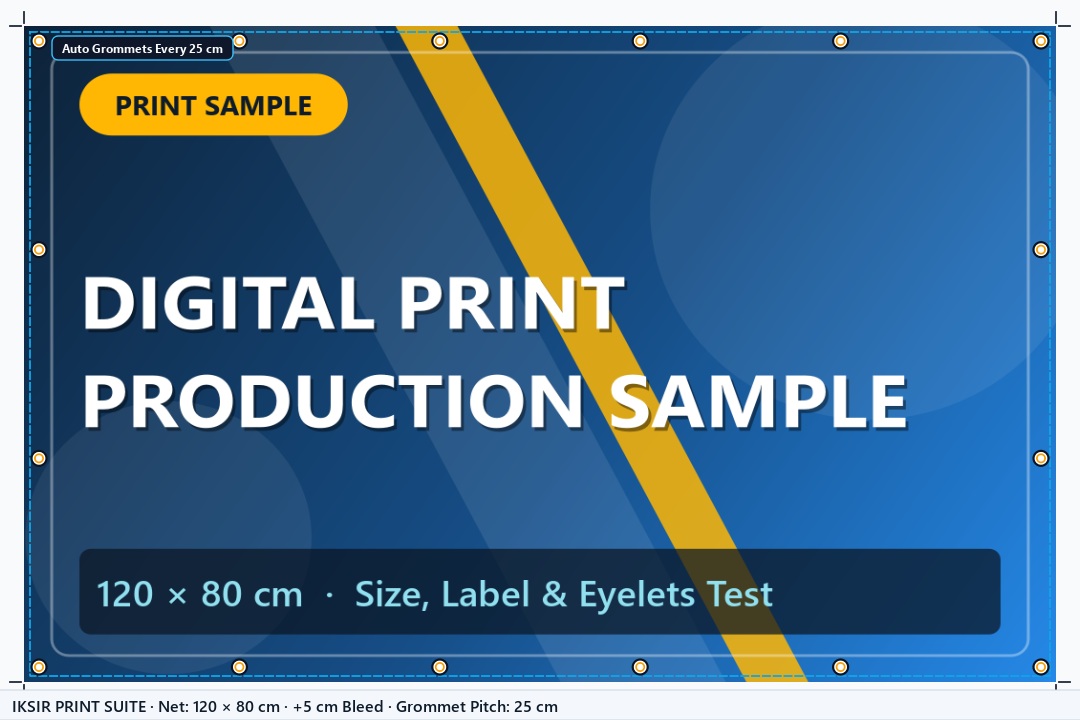
Download both the clean source artwork and IKSIR’s production output (with overlap seams, sleeve folds, grommets, and print labels) to verify physical dimensions in Onyx, Caldera, VersaWorks, PhotoPrint, or Maintop.
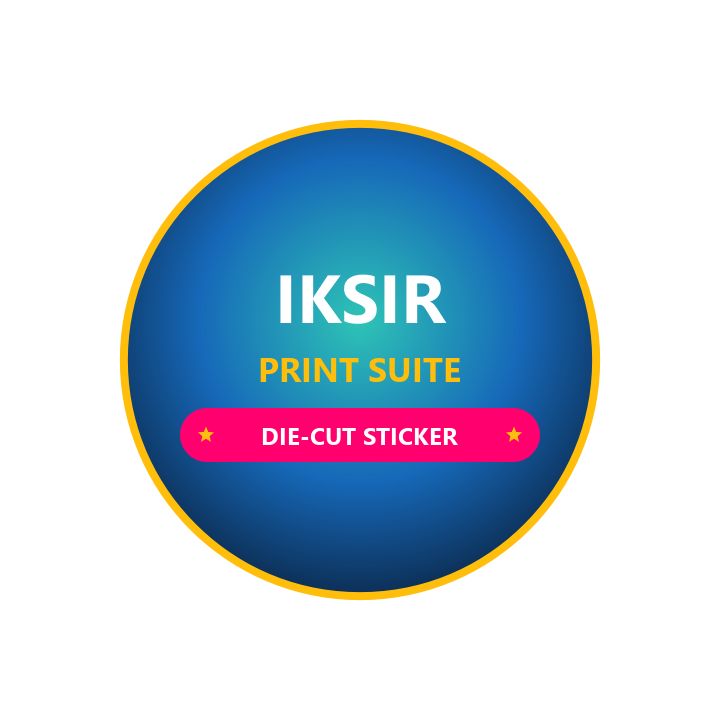
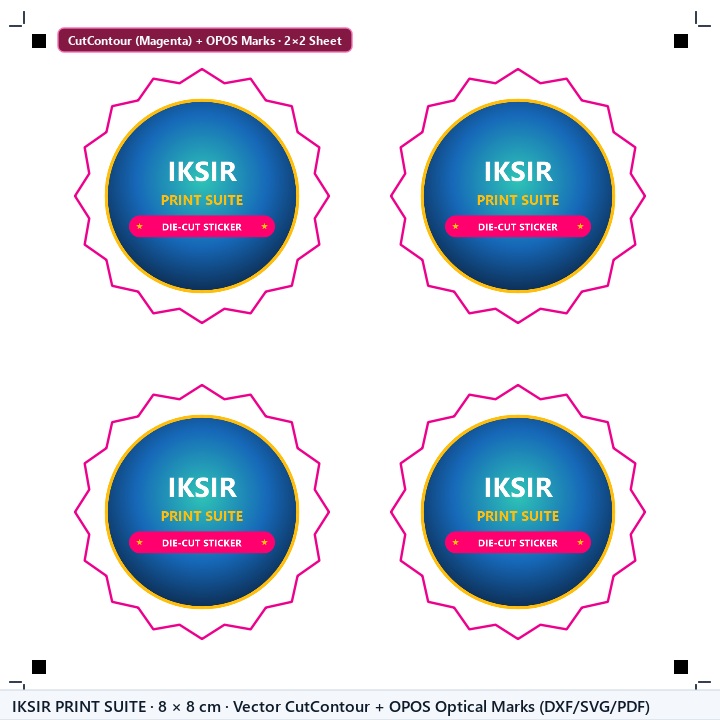
8 × 8 cm transparent PNG fitted with a magenta CutContour path, 2×2 sheet layout, and OPOS marks.
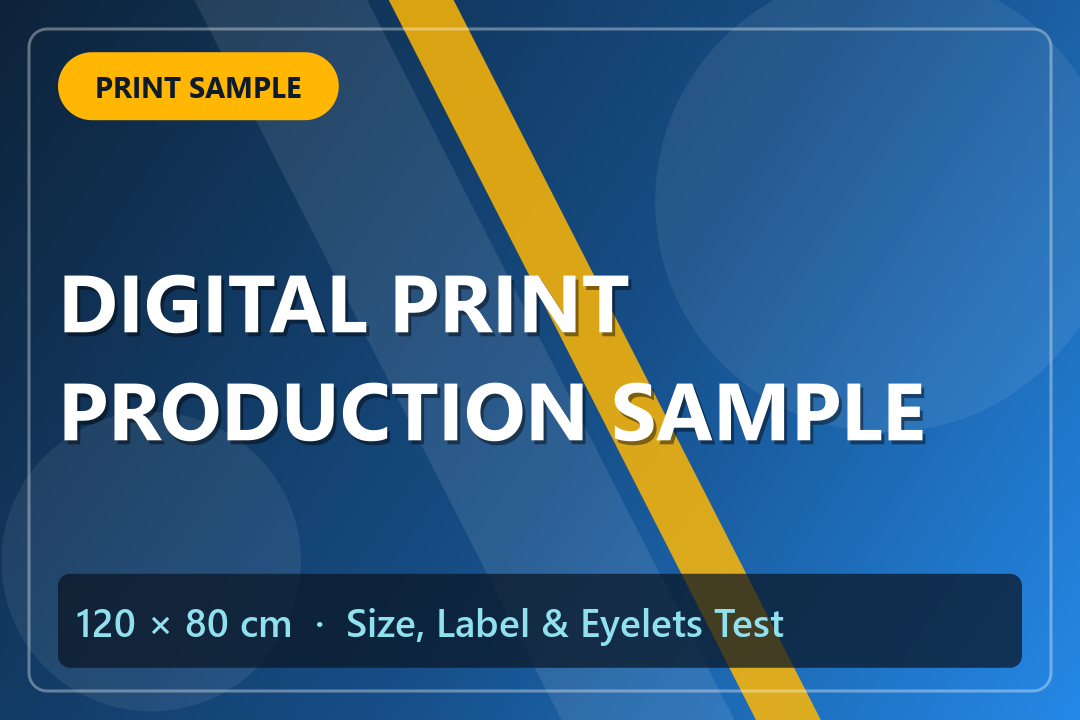
120 × 80 cm print job with bleed margin, 25 cm eyelet markers around all edges, and a footer label.
MODE-SPECIFIC FREQUENTLY ASKED QUESTIONS
Yes. The multi-tab controller preserves open tabs across mode switches and restarts, and you can save standalone .iksir project files with all layers intact.
Yes. Drag-and-drop or use Add Image to bring PDF pages and crisp SVG vectors directly onto your active canvas.
Move Layer shifts everything on the selected layer together, whereas Move Object lets you click and reposition individual text, shape, or image items independently.
Yes. Bottom action buttons send your layered artwork straight into 3D Sign Presentation or the DXF/SVG CNC cutting workspace in one click.
COMPLEMENTARY WORKSPACES
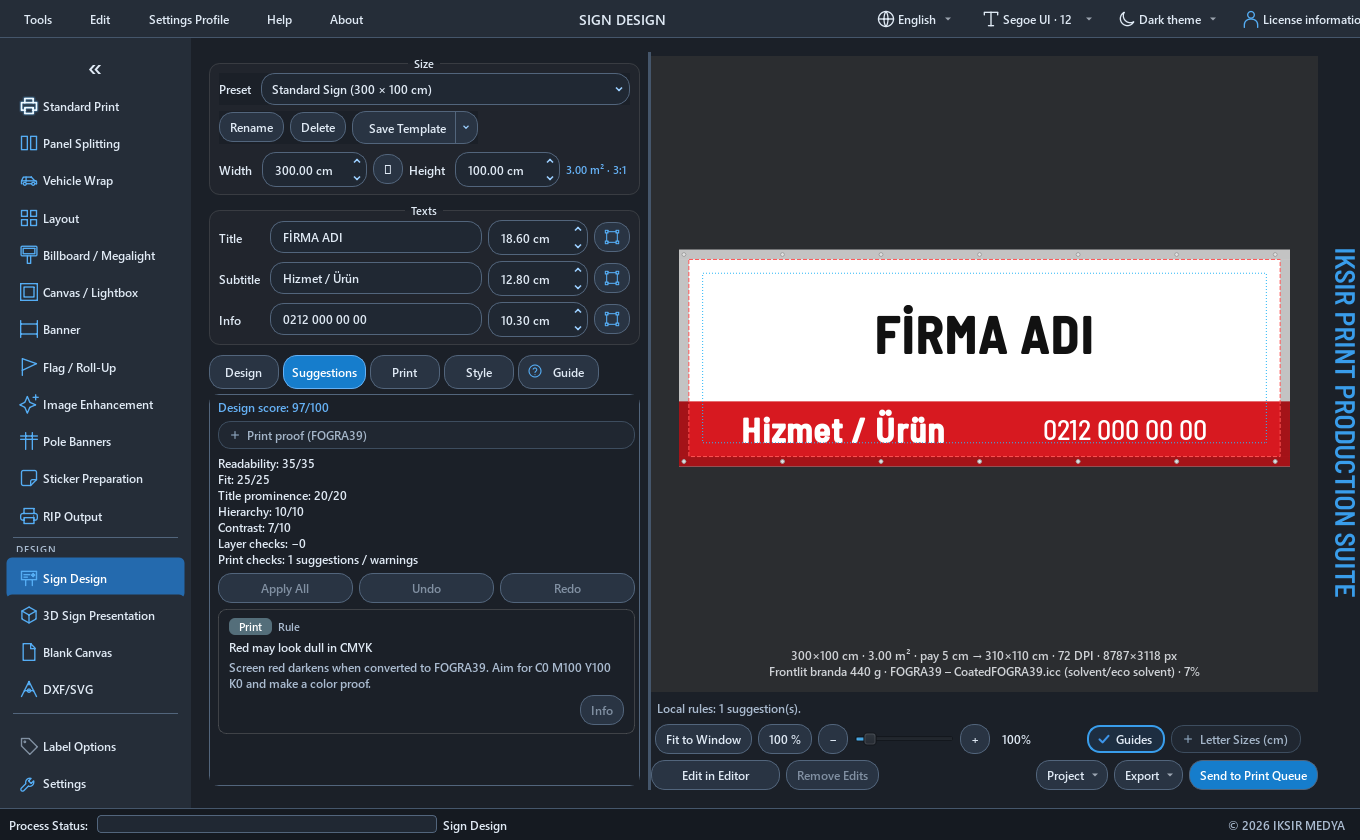
Enter dimensions and describe the sign in plain language or apply industry templates; verify 0–100 viewing-distance readability, live CMYK FOGRA39 soft-proof, vector PDF, and CNC cut output.
Detailed Mode Guide & Specs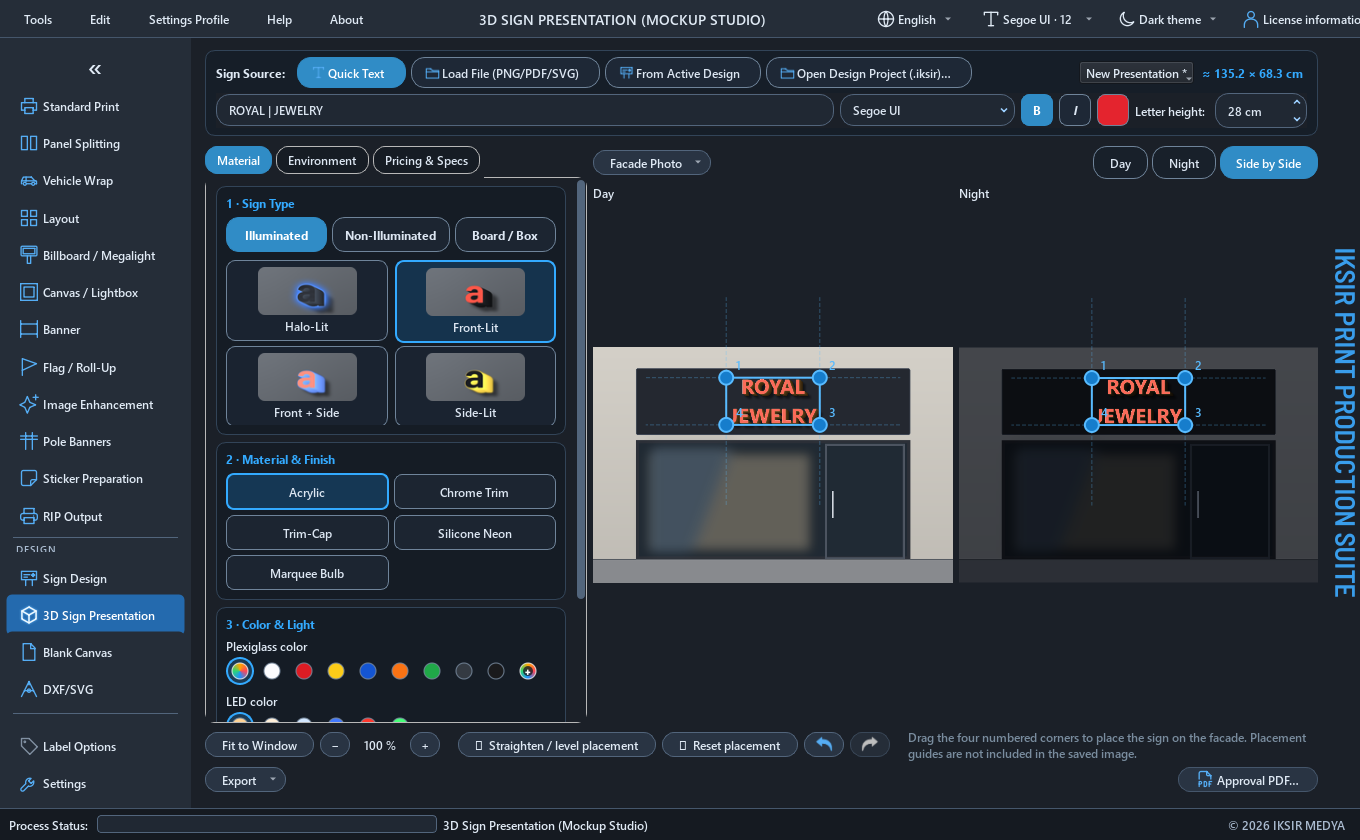
Type quick sign text or drop Corel/Illustrator PDF-SVG-PNG logos to render realistic day/night 3D channel letters, chrome-trimmed acrylic, and neon on client facades—complete with instant pricing and A4 Approval PDFs.
Detailed Mode Guide & Specs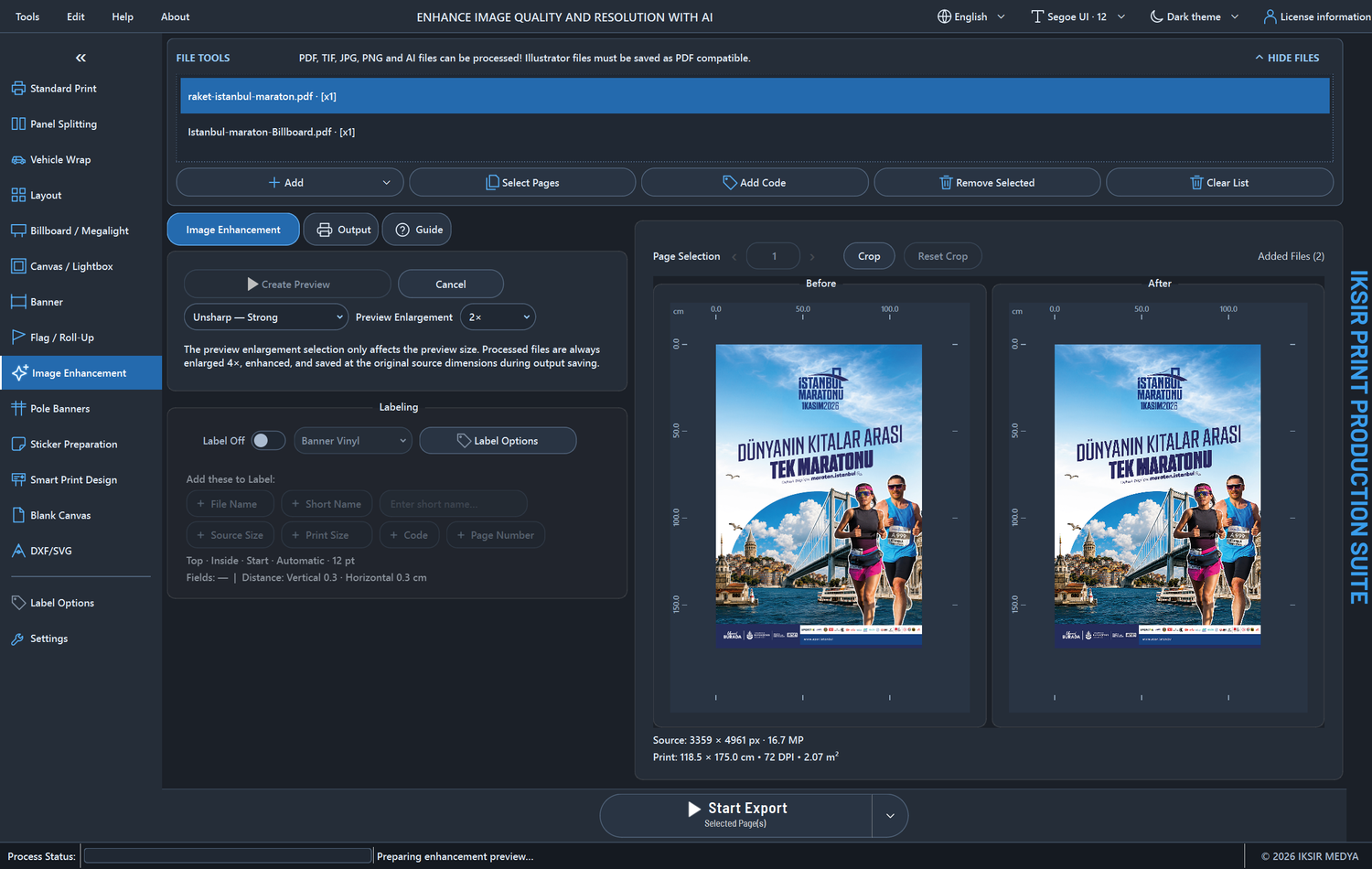
Turn pixelated WhatsApp photos, old logos, and low-DPI product crops into crisp large-format prints with 100% offline 2×/4× AI super-resolution and JPEG artifact removal.
Detailed Mode Guide & SpecsNo need to hunt for test PDFs after installing; click "Try with Sample Artwork" inside any mode to load a real-scale job and inspect the output immediately.